Commands
Commands are ways of interacting with the CLI tool, each command will perform an action, resulting in different outputs, for now we only have one command, but as the tool evolves, new commands will be added
Anatomy of a command
Understand better how to compose a command using the Clingon API.
First you need to call the tool, if you have installed it globally, you can call it using the word clingon if you prefer not to install it globally, use npx as follows npx clingon.
clingon

# or

npx clingon
Next, you will have to pass a command, it can be gen or create (but remember: each one behaves in a different way, see more below in this same documentation). Then:
clingon gen

# or

npx clingon gen
You can add an argument to the command:
clingon gen MyResourceName

# or

npx clingon MyResourceName
And if the command accepts options, you compose it by passing the options with --OPTION-NAME, let's use the create command as an example:
clingon gen MyResourceName --preset react-with-test

# or

npx clingon MyResourceName --preset react-with-test--preset: indicates thepresetoption that takes as its value the name of the preset that you have locally, in this example the name of the preset isreact-with-testwhich is a json file saved in thefolder .clingon/presetsinside your project.
gen command
The gen command is used to generate resources, it calls the question-based creation flow, where the tool asks you a few things, such as what type of resource, what the framework is, whether you want tests, stories, etc., and in Finally, it gives you the resource files. Remembering that in this mode, the templates are opinionated, based on community code styles (common code between frontend projects, and good practices).
Arguments
<name>: Name of the resource to be created (optional).
Usage examples
- Basic, just call the command and then you answer the questions
clingon gen


# or

npx clingon gen- With name as argument (same as above, but will skip the name question)
clingon gen ResourceName

# or

npx clingon gen ResourceName
create command
The create command is used to create resources with various configurable options, such as resource name, type, framework, file paths, and other additional settings. It facilitates quick and customizable creation of files and structures in a development environment.
This command differs from the gen command in a few ways, for example, it is not verbose, so when using Preset Mode, it will create all the resources of your preset instantly, without any messages, interactions or confirmations with the terminal. Saves exceptions where it interacts via prompt in the terminal, if it doesn't find your preset and you have local presets, it will list which one you want to use, or if none exist, it may ask you to answer the prompt for guided generation (but this is in discussion if it is relevant or if it should just return an error, if decided in a future update this documentation will be updated too).
This command has two operating modes: With presets or with parameters (options).
- In preset mode, you use a locally saved preset to create your resource, it will have all the configuration necessary to assemble the resource, saying whether it needs tests, stories, what style approach, etc.
- In mode with options, you indicate each parameter via the command line, if you want typescript, or if you want to use spec or test as a test postfix, or which css approach, to use this mode, you need to have a little more knowledge about the application interfaces to pass the correct values.
See more below, and check out the examples in the sections below:
Arguments
<name>: Name of the resource to be created (required).
All options
| Option | Description | Default Value | Required |
|---|---|---|---|
--preset [preset] | Name of the preset to be used. | Default Mode: Yes / Options Mode: No | |
--framework <frameworkName> | Name of the framework for the default preset; can be either "vue" or "react". | Yes | |
--type <resourceType> | Type of the resource; can be "function", "page", or "component". | Yes | |
--vue-version [vueVersion] | Vue version; can be "2" or "3". | 3 | Yes only for vue as a framework, not for other cases. |
--path <resourcePath> | Path to the resource; use dot (".") for the current directory. | Yes | |
--test-path [testPath] | Path to the test file; uses the same directory as the resource if omitted and --spec is present. | If it is omitted, and has --test or --spec it will use the value of --path | No |
--story-path [storyPath] | Path to the story file; uses the same directory as the resource if omitted and --spec is present. | If it is omitted, and has --story it will use the value of --path | No |
--css-framework [cssFramework] | Style approach; can be "css_modules", "tailwind_inline", "tailwind_file", "css_vanilla", or "scss". | no_style | No |
--test-framework [testFrameworkName] | Test framework; can be "jest" or "vitest". | jest | No |
--typescript | Enables TypeScript support. | false (uses JS instead) | No |
--testing-library | Includes Testing Library support. | false (uses the default for framework) | No |
--test | Adds a test file. | false | No |
--spec | Adds a specification file. | false | No |
--story | Adds a story file. | false | No |
--folder-wrapper | Creates a folder with the resource name, with the files inside. | false | No |
Usage examples
Preset mode
Como mencionado anteriormente, o comando create possui dois modos, este é o modo com predefinição, aqui a ferramenta espera apenas que você indique o argumento name e o parâmetro (opção) --preset seguida do nome da predefinição (deve ser um nome válido, referente a um arquivo .json existente salvo na pasta .clingon/presets).
clingon create ResourceName --preset preset-name

# or

npx clingon create ResourceName --preset preset-name
Full options mode
- To create with additional options, like adding a test file, using TypeScript, and creating a folder wrapper:
clingon create ResourceName --preset myPreset --test --typescript --folder-wrapper

# or

npx clingon create ResourceName --preset myPreset --test --typescript --folder-wrapper- To create a Vue component with a story file and a CSS framework:
clingon create ResourceName --framework vue --story --css-framework css_modules

# or

npx clingon create ResourceName --framework vue --story --css-framework css_modules- To create a resource with a specific framework and type, like a React component:
clingon create ResourceName --framework react --type component

# or

npx clingon create ResourceName --framework react --type component
Use as npm script
You can create shortcuts using NPM scripts to execute clingon commands, if you don't want to use presets, or if you want to share commands with your team.
-
Create React component with Tests, Story, Vitest, CSS Vanilla and wrapper folder
-
Scripts
{ "scripts": { "create:react": "clingon create --type component --framework react --css-framework css_modules --spec --story --path src/components" } } -
Execution
npm run create:react ResourceName

# or

yarn create:react ResourceName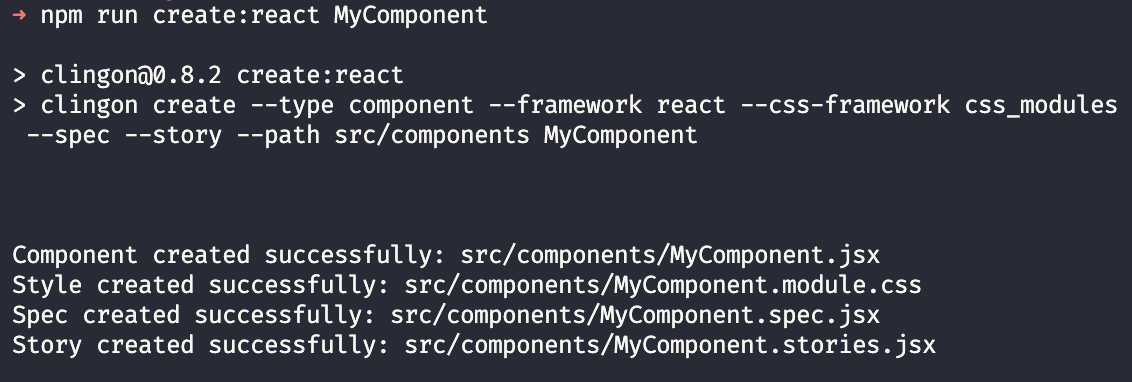
-
init command
To use Clingon in an advanced way you need to initialize the tool, this will create some example and configuration files.
Usage
clingon init

clingon init --e

# or

npx clingon@latest init

npx clingon@latest init --examples
Arguments
This command has no arguments
Options
| Option | Description | Default Value | Required |
|---|---|---|---|
-e, --examples | Generate files with example content | false | No |
scaffold command
Advanced mode command, with this command you can generate your files with local templates, instead opinionated built-in templates from clingon gen and create command.
To learn more about this command, see this complete doc: Custom templates (Advanced)
Usage
npx clingon@latest scaffold ResourceName --template templateIdentifierArguments
<name>: Name of the resource to be created (required).
Options
| Option | Description | Default Value | Required |
|---|---|---|---|
-t, --template | Template identifier, from identifier key inside meta file | none | Yes |